Alfred Desktop User Settings
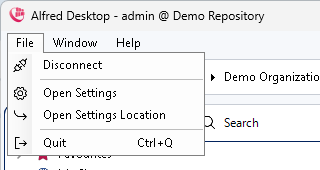
Alfred Desktop allows you to configure the settings listed below. To change the settings, click on “File” and select “Open Settings”.
General
LOCALIZATION
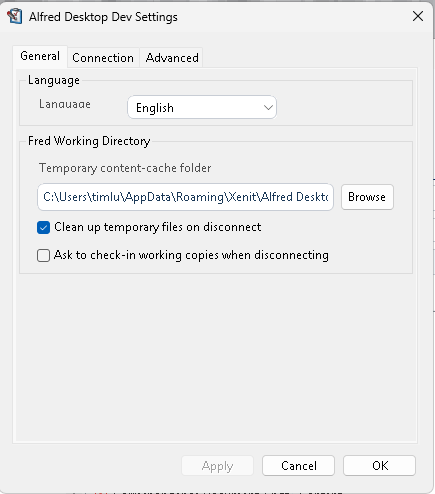
Alfred Desktop will use, by default, the language set in Windows. You can set a specific language pack for the Alfred Desktop user interface
The Alfred Desktop Working Directory is the folder used to download the working copies in the “Edit Offline” action
- The checkbox ‘Clean up temporary files on disconnect’ activates the removal of temporary copies of downloaded files. As you continue to consult documents, temporary copies remain on your local drive and grow in volume
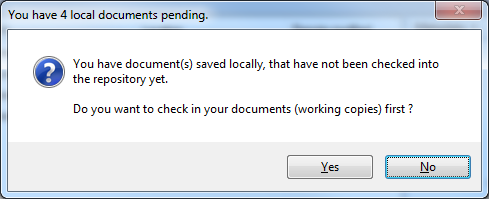
- The checkbox ‘Ask to check-in working copies on disconnect’ activates a message box that will ask you to check-in all working copies when disconnecting from the repository. This is useful when you are working on two computers, and you want to move from one computer to the other
Connection
PROXY SETTINGS
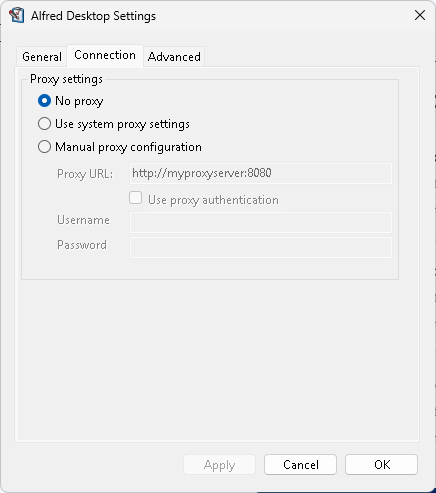
- Alfred Desktop is enabled to handle proxy configuration. Contact your system administrator for more information
Advanced
The settings in the advanced tab allow you to configure the behavior of the Alfred Desktop window.
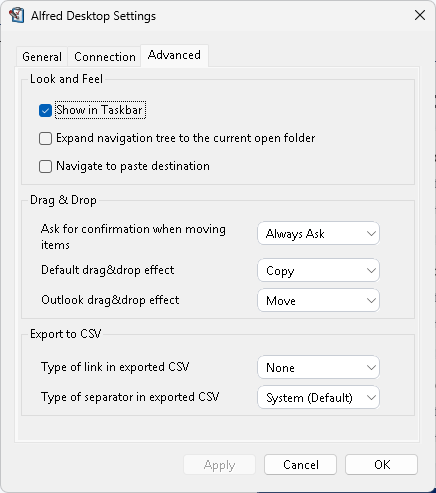
Look and Feel
Show in taskbar: presents an Alfred Desktop tab in the Windows taskbar,
not only in the system tray. A right mouse click on the icon
 will provide a command menu.
Expand navigation tree to the current open folder: expands the navigation pane up to the folder that is open in the content pane, so that the position of the folder in the repository remains visible.
Navigate to paste destination: after you paste documents or folders into another folder, Alfred Desktop opens that destination folder and selects the items you have just pasted. When the option is switched off, the view stays where it is. This option is switched off by default.
Drag & Drop
Allows you to configure confirmation prompts and the default action that should take place when performing a drag and drop from the Windows desktop, Explorer, or the MS Outlook application.
Export to CSV
When you export metadata from navigation details or search details, you can select to copy the Alfresco or Alfred Desktop link of the object as the first column in the csv list. This enables you to jump to the object from the list.