Connecting to Alfresco
The Alfred Desktop Trial Version has a default server configuration. This Alfred Desktop Trial Version cannot be configured for another Alfresco server. The user will have to set the username and password as provided by XeniT.
For completeness of this documentation, we are providing you the functional description below.
Alfred Desktop is a desktop window to the Alfresco Server; that is, Alfred Desktop presents the content of the Alfresco server to the user. To be able to access the server, the user needs to configure the Alfresco repository to which the user wishes to connect.
The Alfred Desktop start-up window contains a list of repositories that have been configured by the user.
To add a repository, click on
 at the bottom of the list.
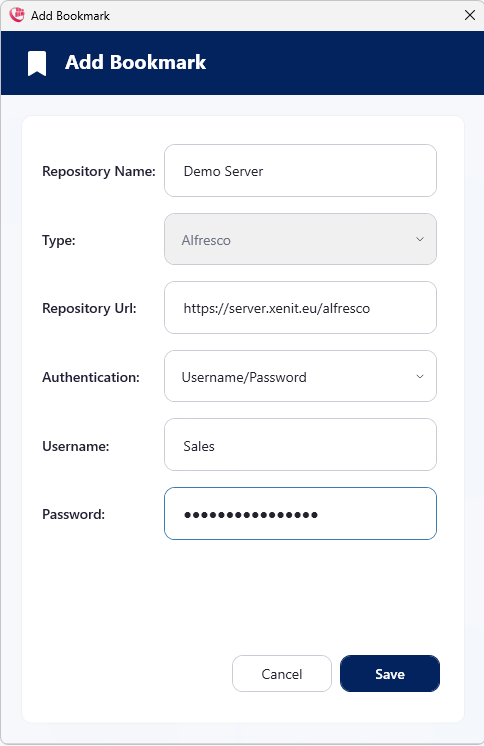
Fill in the fields of the repository you want to configure:
Repository name: your preferred identifier for the repository,
Repository type: Alfresco
Repository URL: the link to the Alfresco repository you want to connect to. Contact your system administrator to receive the link to your Alfresco repository,
Authentication:
Username/password: where there is no Single Sign-on available, you will need to fill in the username and password to authenticate yourself against the Alfresco server.
Negotiate (SSO)
Negotiate with credentials
NTLM (SSO): use Single Sign-on authentication in a corporate network,
NTLM with Credentials, and
OAuth - OpenID Connect: when you connect, Alfred Desktop opens the login page of your organization in a browser window. After you have logged in there, Alfred Desktop continues with the connection. No password is stored on your computer.
Click Save.
Now this repository will be included in the list of all the repositories you have configured. You can connect to multiple repositories, using multiple account names.
The list of repositories you have configured are sorted alphabetically based on the repository names you have provided.
In the list of repositories, you can select one repository to be the default repository. When you start up Alfred Desktop, it will open the default repository immediately. If no default repository is selected, then Alfred Desktop will open the repository list at start-up.

- To enter a repository, you can press the “Connect” button, double click on a repository within the list, or click “Connect from the right-click context menu.
- To edit a repository you can click on the edit button next to the “Connect” button or select “Edit” from the right click context menu.
- To delete a bookmark you can click on “Delete” in the right click context menu or click on the trashcan button when editing a bookmark.
- When you have previously entered an Alfresco repository, and you want to move to another repository, click File > Disconnect in the top left. This will bring you back to the list of bookmarked repositories.