Searching
Simple Search
At the top of the Alfred Desktop Window you are able to type in text relevant to a document or topic you are looking for.

The search will look for the text in any metadata field and in the text of the document if it is text-searchable. The search will be restricted to the folder set in the breadcrumb and its subfolders.
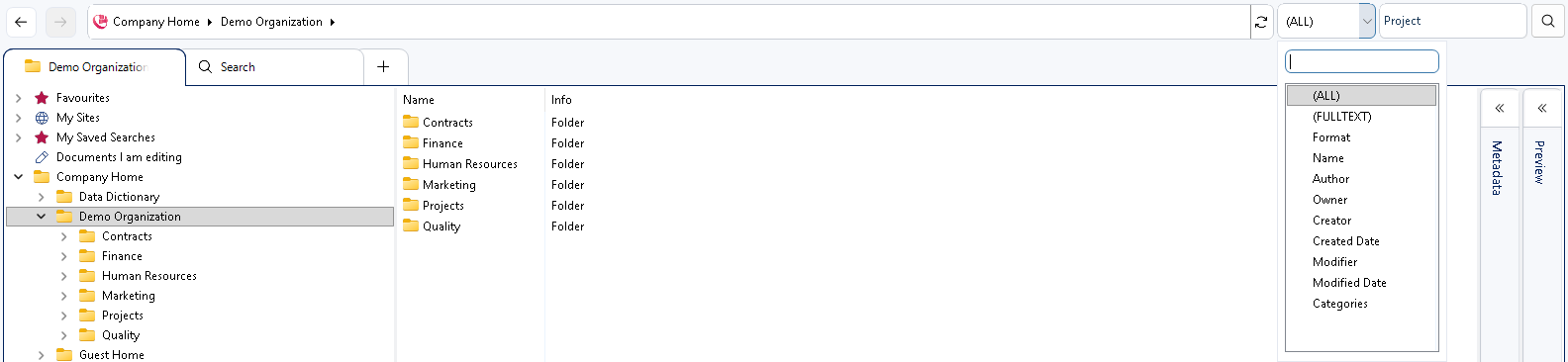
A generic search will look for this value in:
Folder names
File names
Metadata fields
Document searchable content
Format
If you select a metadata field, the search will be restricted to this metadata field.
If you select “Full Text”, the search will be restricted to searchable content.
Some simple rules to optimize your search result:
Blanks between words will provide a search result where both words appear
Use wildcards before and/or after the word (e.g. *health*) when you are looking for that text in a part of a metadata field, document, etc.
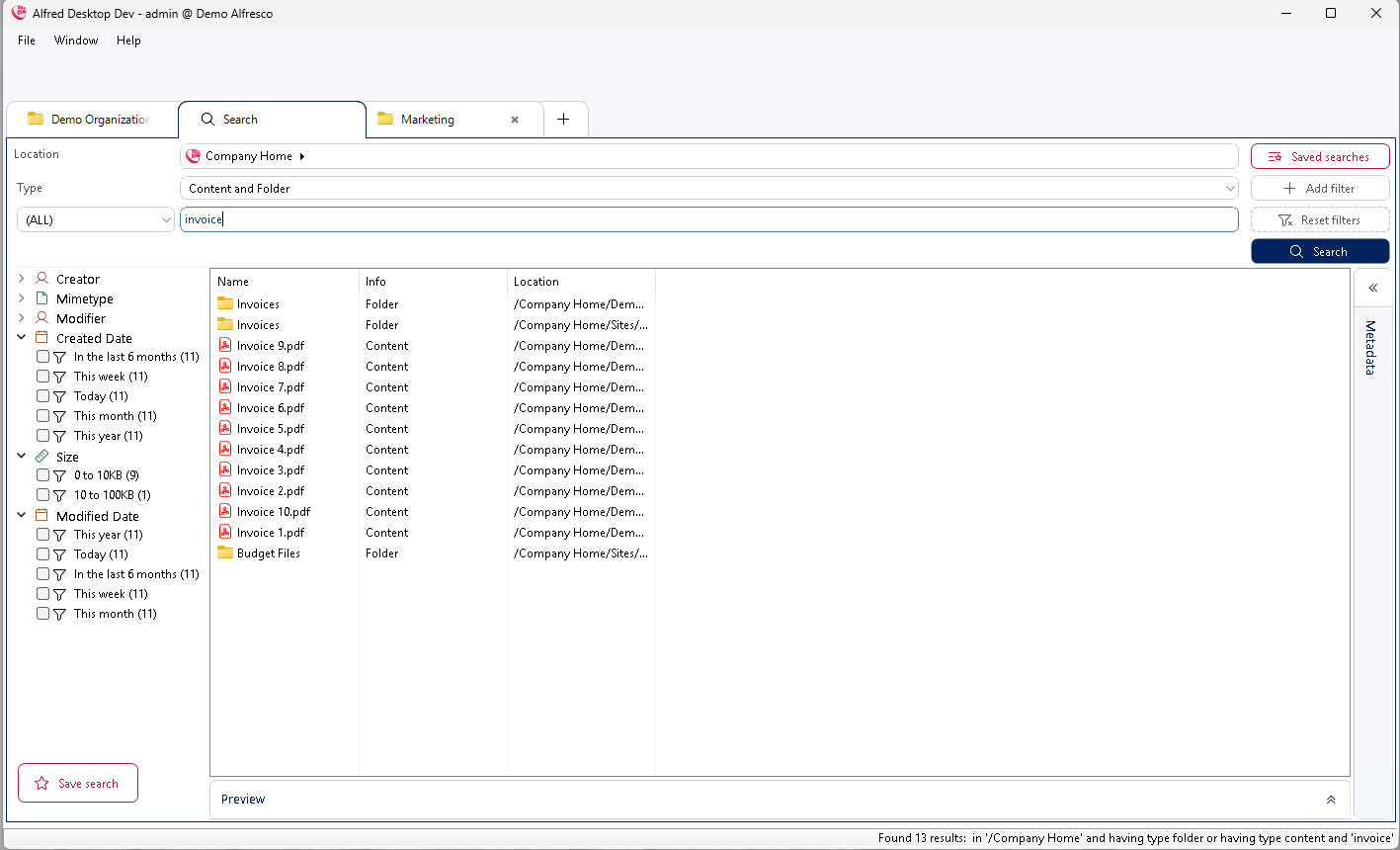
The search result will be presented in a separate tab as a list view, and show all available field values of the selected columns. You can select the column set you want to see, and the list can be sorted by clicking on the column header.
Your system administrator can configure a default search field.
Dropping an Alfresco Link or Alfred Desktop link in the Search Field
If you have received an Alfresco or Alfred Desktop link to an object, you will be able to copy and paste it into the Search field. The object will appear in the search result.
Advanced Search
A simple search can be extended to an advanced search. The buttons on the right-hand side of the search panel let you build up your search:
“Add filter” adds an extra search criterion.
“Reset filters” clears the criteria you have filled in.
“Search” executes the search.
The criteria you add yourself can be removed again individually, using the delete button next to the criterion.
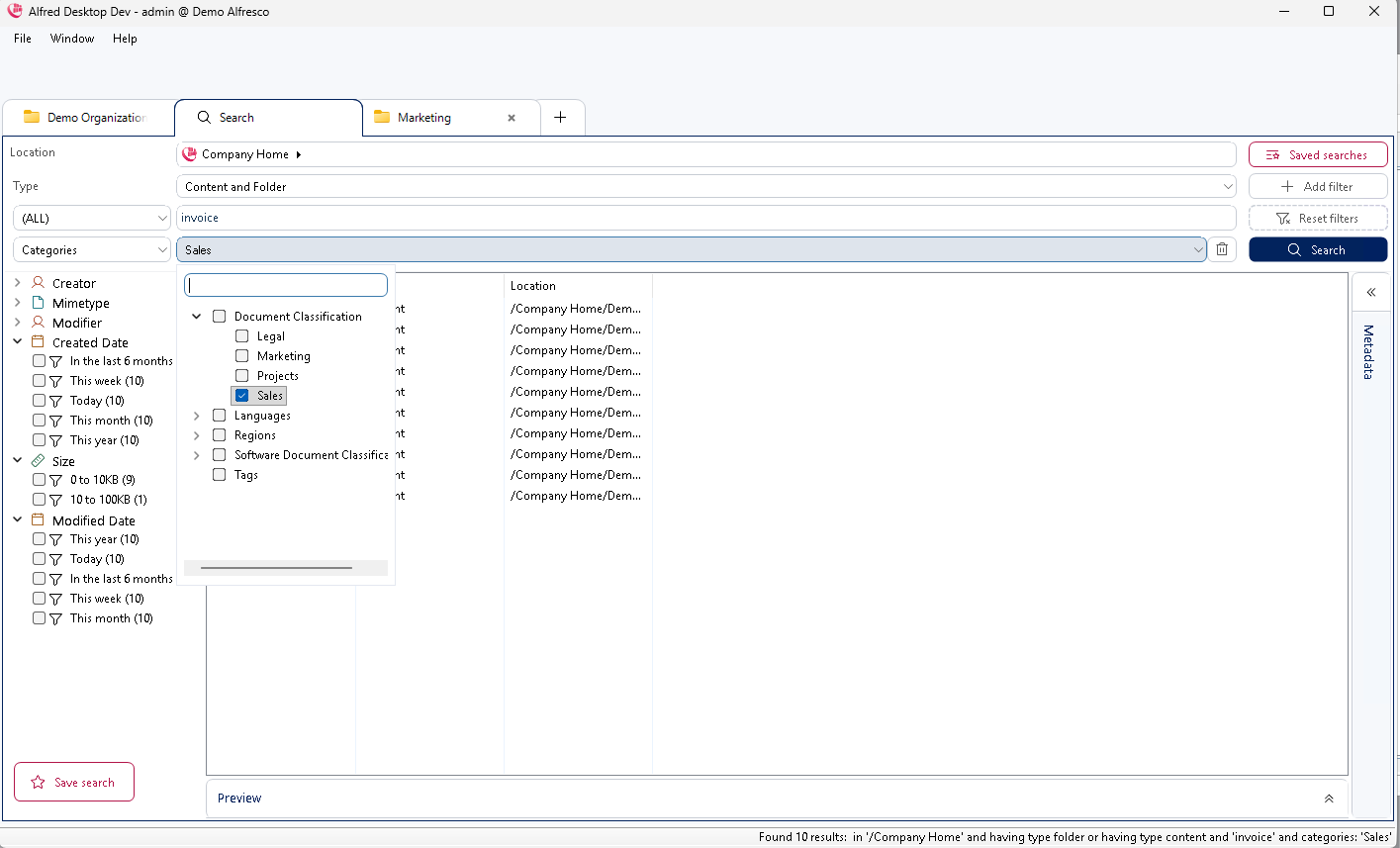
If you wish to refine your search, you can add as many metadata fields as you want. Click the “Search” button to execute the search.
Facetted Search
Where SOLR indexing has been activated on the Alfresco Server, you will receive additional filtering functionality in the search result. On the left side of the search result, a list of facets and the values present in the found records will be presented.
The facets appearing in the left column are predefined by your organization. Contact your IT team if you require additional fields to be made in this list to optimize your search.
For each facet defined in the search pane, a list of values that appear in your search result, and the number of records containing that value, are presented.
Selecting one of the values will filter the search results to those documents containing that value. The facets pane will be updated to the new search result. The Facet fields and the number of records will be updated to those appearing in the filtered result.
In the example below, selecting “Created Date” filters the search result to all the documents based on created date, and the facet values and the number of hits will be filtered based upon this selection.
By selecting multiple facets, you can quickly narrow down the search result to locate the document you are looking for.
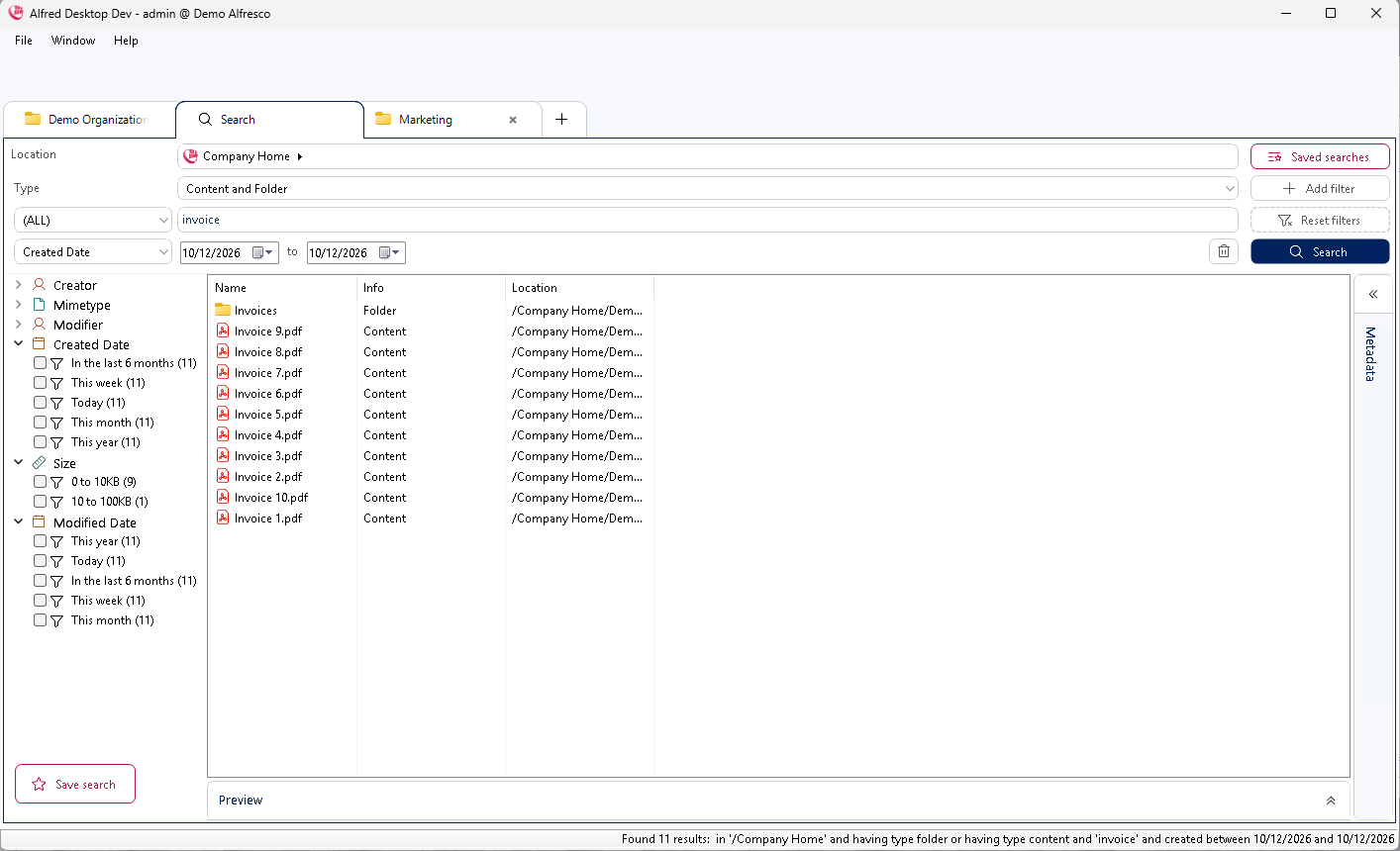
Filtering using Facets
From Version 5.0 onwards, Alfresco supports SOLR 4.x. This brings with it a new range of facet features. Facets allow you to filter the search result according to the facet value you select.
With Alfred Desktop 3.3 or higher, combined with Alfresco 5.0 or higher, you will have facet buckets available for dates and volumes.
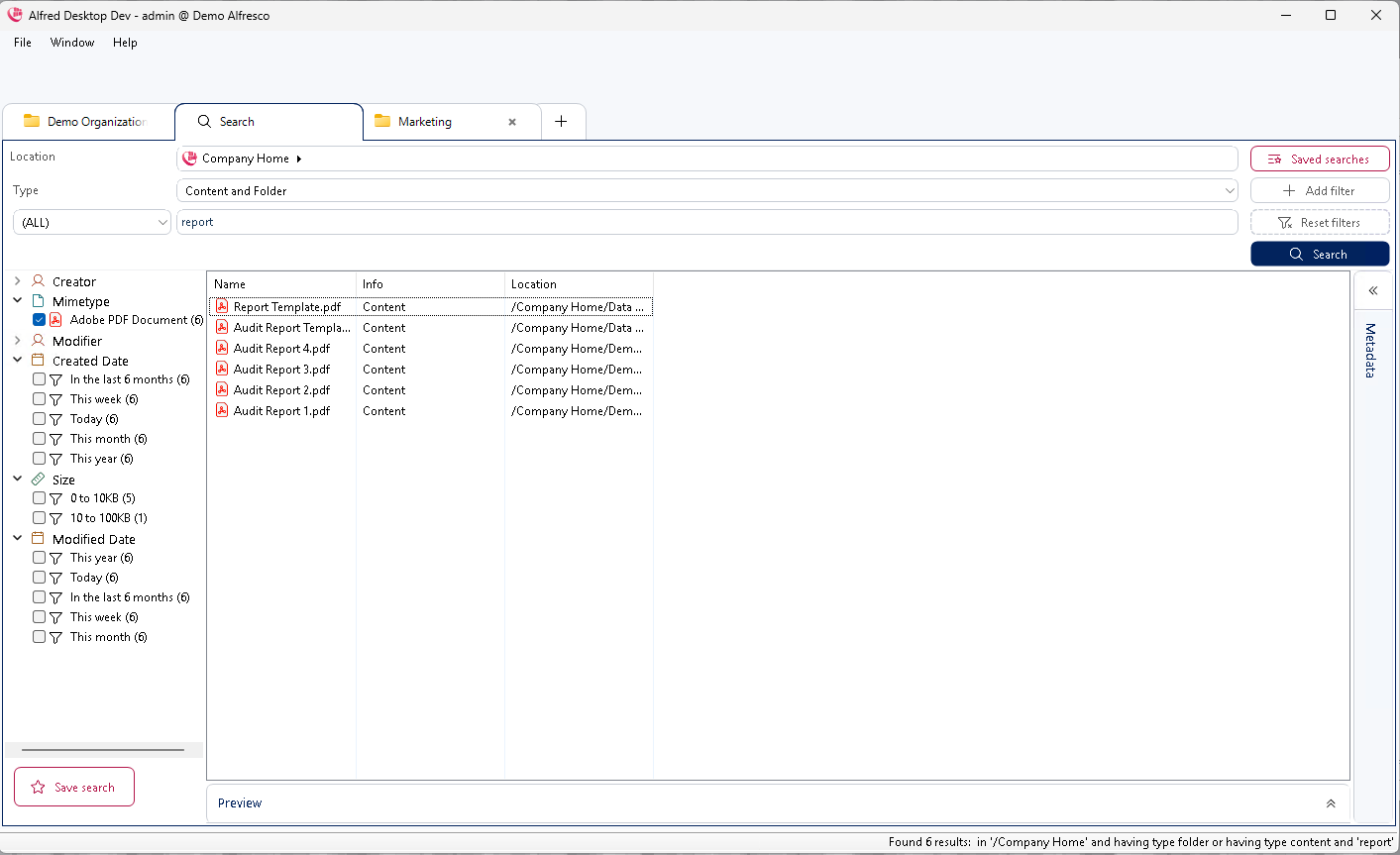
AND, OR and () Operators in Text Fields
In text fields, you can use OR, AND & () operators to conduct an advanced search on a specific field.
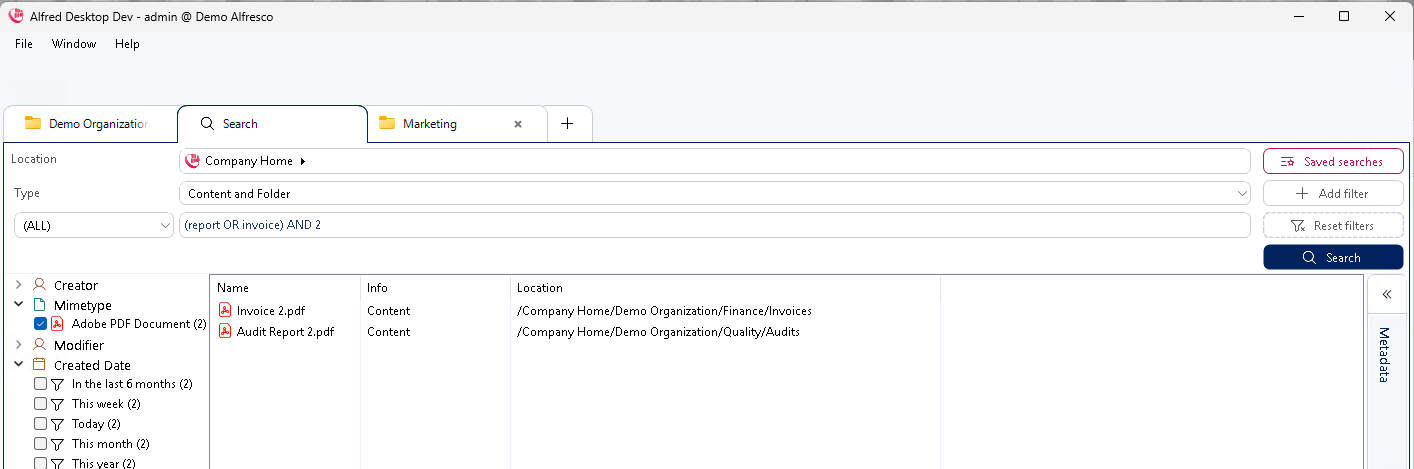
The behavior in this field is as follows:
| Input User | Presentation after Pushing Enter | Search Result |
|---|---|---|
| Tom Jerry | Tom AND Jerry | Tom AND Jerry |
| Tom OR Jerry | Tom OR Jerry | Tom OR Jerry |
| “Tom and Jerry” | “Tom and Jerry” | “Tom and Jerry” |
| Tom Jerry OR Goofy AND “Donald Duck” | Tom AND Jerry OR Goofy AND “Donald Duck” | ((Tom AND Jerry) OR Goofy) AND “Donald Duck” |
| (Tom AND Jerry) AND “Donald Duck” | ||
| Goofy AND “Donald Duck” | ||
| Tom Jerry OR (Goofy AND “Donald Duck”) | Tom AND Jerry OR (Goofy AND “Donald Duck”) | (Tom AND Jerry) OR (Goofy AND “Donald Duck”) |
| Tom AND Jerry | ||
| Goofy AND “Donald Duck” |
Messages in Search Result
You can limit the time during which the search is executed, and the number of results that are evaluated, against access rights. If one of the limits set are met, the search ceases and the current result is evaluated against access rights and presented as the final search result.
A message is displayed with guidance on how to proceed to obtain a better search result.
While executing a result, Alfred Desktop displays multiple messages:
- At the bottom right of the screen:
While searching:
When a result is found
If you launch a new search while the previous search is still running:
- You will receive a warning message
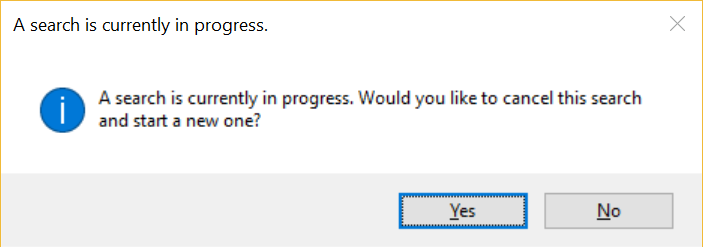
- If you confirm, then the running search will not be cancelled on the server, but the result will not be presented in Alfred Desktop. Instead, Alfred Desktop will present the result of the new search.
Search in a Part of the Tree Structure
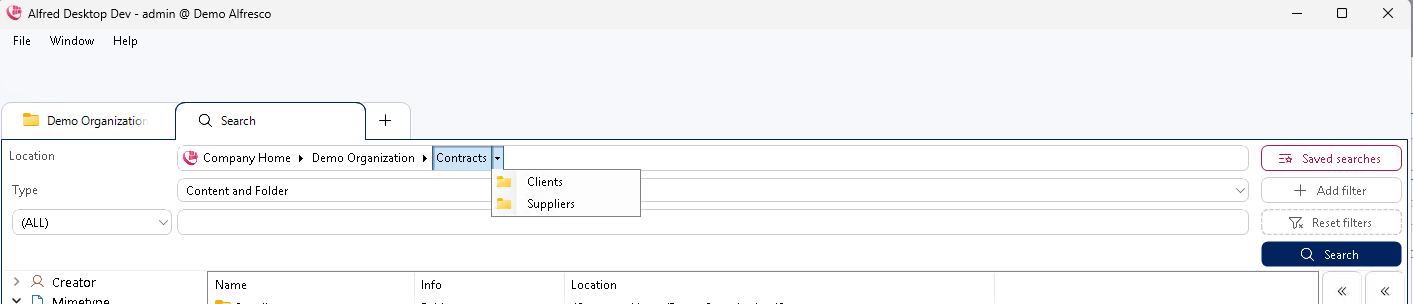
If you want to limit your search to a part of the repository, you can set the folder in which you want to search using the location criteria. The search will be limited to the folder and its subfolders.
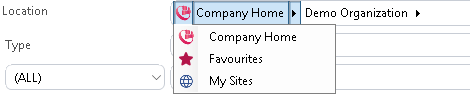
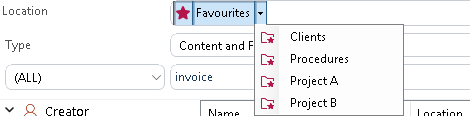
You can also select the Favorites folders as a location by selecting it from the dropdown that is opened when the alfred logo is clicked.
Saved Search
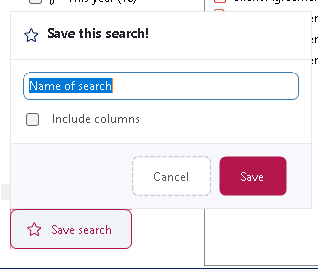
You can save your current search by clicking the “Save search” button at the bottom of the search panel. Enter a name for the search, and tick “Include columns” if you also want to store the columns you have selected. This enables you to quickly perform the same search again in the future.
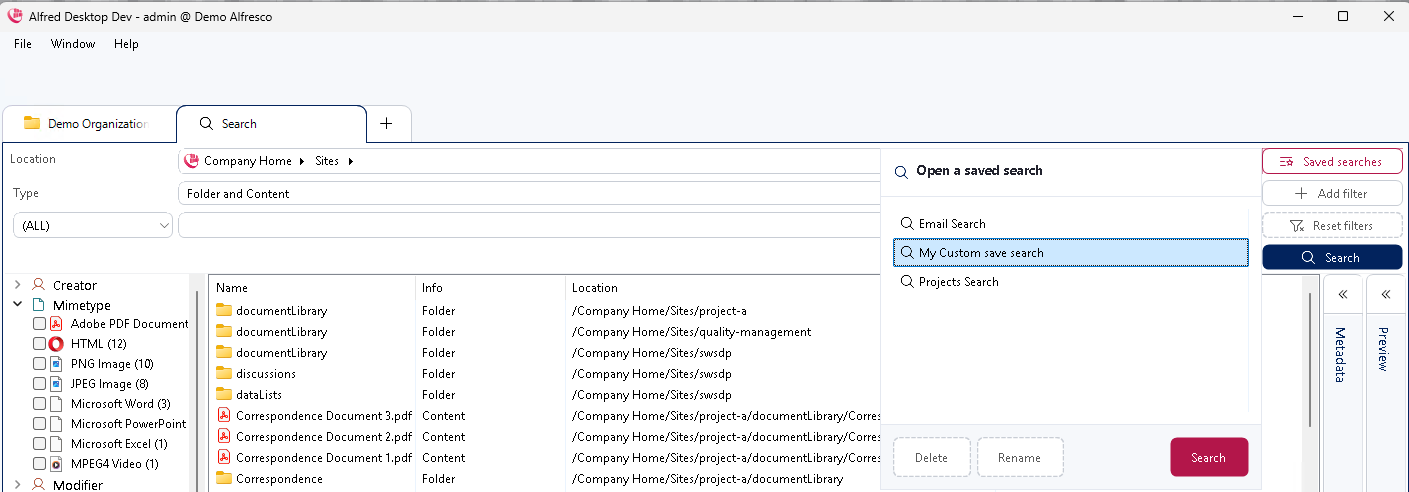
Saved searches can be executed and managed using the “Saved Searches” button in the search tab.
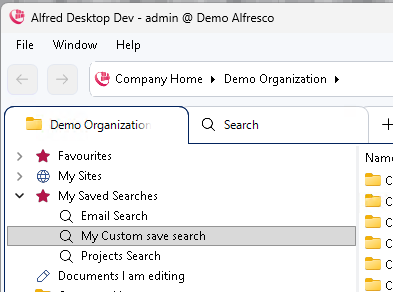
It’s also possible to manage and run the saved searches from within the browse tab, they are located under “My Saved Searches” and can be edited/removed by right clicking them and using the context menu.
Grouping on Metadata Values
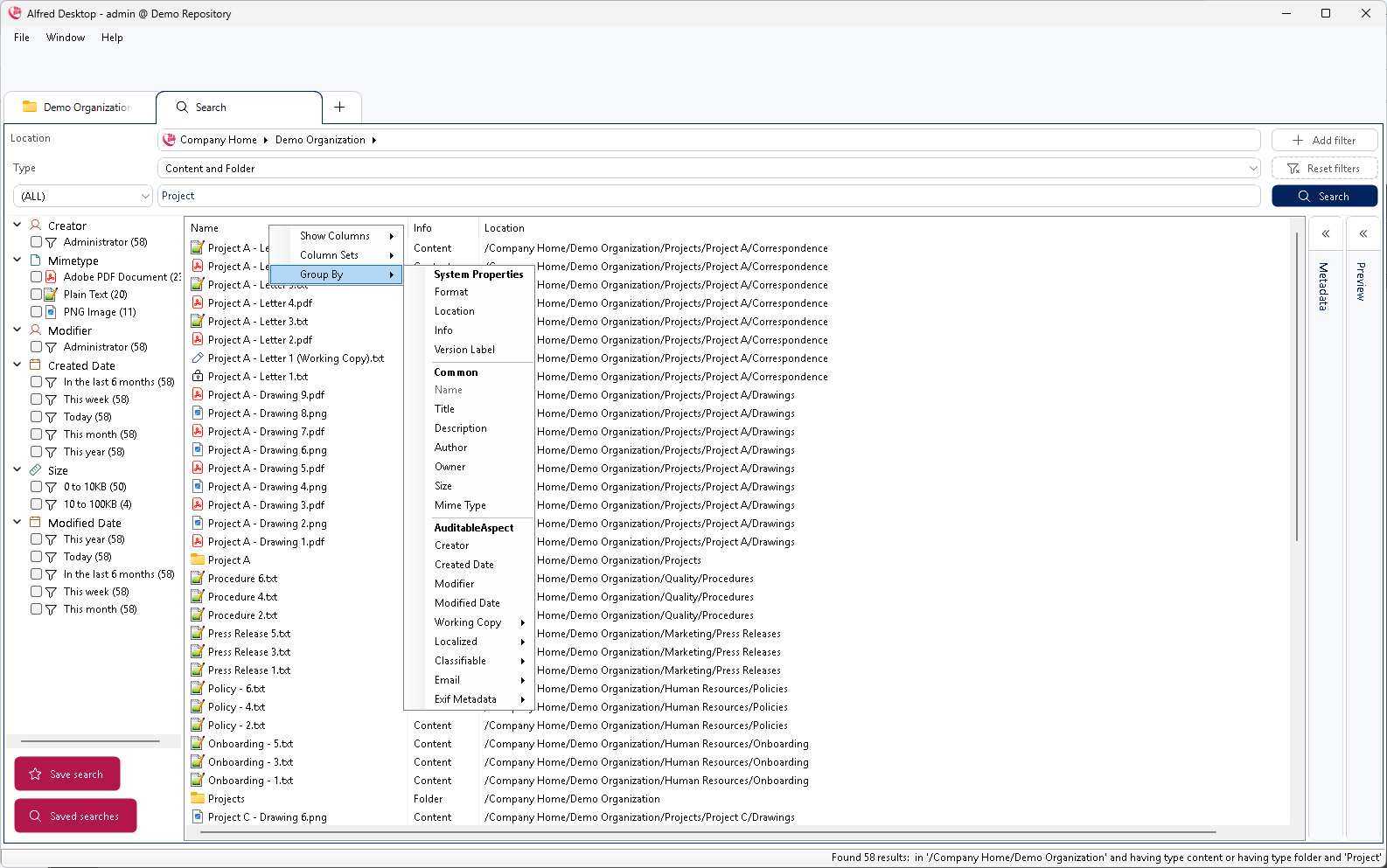
You can group the search results on the values in one metadata field. Right click on the column header and select “Group by”.
Remove the grouping by deselecting the metadata field in the list.
Open File Location
The search result is shown in a list view. Many of the file commands are available in the Search pane.
Clicking “Open File Location” will show you the folder or file selected in the tree structure. This will allow you, for example, to find a folder in which you have put a file, and add a new file to the same folder.